 OpenClaw
See also
For the Jami OpenClaw plugin repository, click here.
Note
You can now control your OpenClaw agents directly using Jami’s peer-to-peer network.

OpenClaw is a tool for controlling AI agents on your computer. It supports both cloud and local models and lets you control AI agents remotely from your phone. OpenClaw can connect an OpenClaw instance to third-party centralized messaging platforms, allowing you to interact with AI agents remotely.
Unlike centralized messaging platforms, Jami uses a distributed peer-to-peer network that allows users to communicate directly without relying on third-party servers. It can also operate entirely on a local network.
Setting up a Jami bot with the OpenClaw plugin is straightforward.
See also
More information on the Jami OpenClaw integration can be found in this blog post.
Installing the Jami OpenClaw Plugin
Important
Prerequisite: Install OpenClaw before proceeding.
Install the OpenClaw channel plugin by running the following command in your terminal:
$ openclaw plugins install @savoirfairelinux/jami-openclaw
See also
View the plugin’s source code here.
Configuring the OpenClaw Plugin
Configure the Jami channel using the built-in configuration wizard.
Note
The Jami OpenClaw plugin currently only supports one channel per OpenClaw config!
Run
openclaw config.When prompted for what to configure, select Channels.
Use the ↓ arrow key to select the Jami channel.
Enter the server URL. You can usually leave this as the default value,
http://localhost:8080. Ensure that the port matches the one configured in Jami under Settings → General → System → Local API Server → Server Port.Enter your bot account’s Jami API token.
Select Finished from the channel list.
You can optionally modify the direct message (DM) access policy. See the description in the configuration wizard for more information.
Talking to Your OpenClaw Bot
Search for your bot’s JamiID, available on the App Access page, and add it as a contact. The OpenClaw plugin automatically accepts the contact request within a few seconds.
Tip
Troubleshooting: If your bot does not automatically accept your invitation, restart the OpenClaw gateway with the following command: openclaw gateway restart.
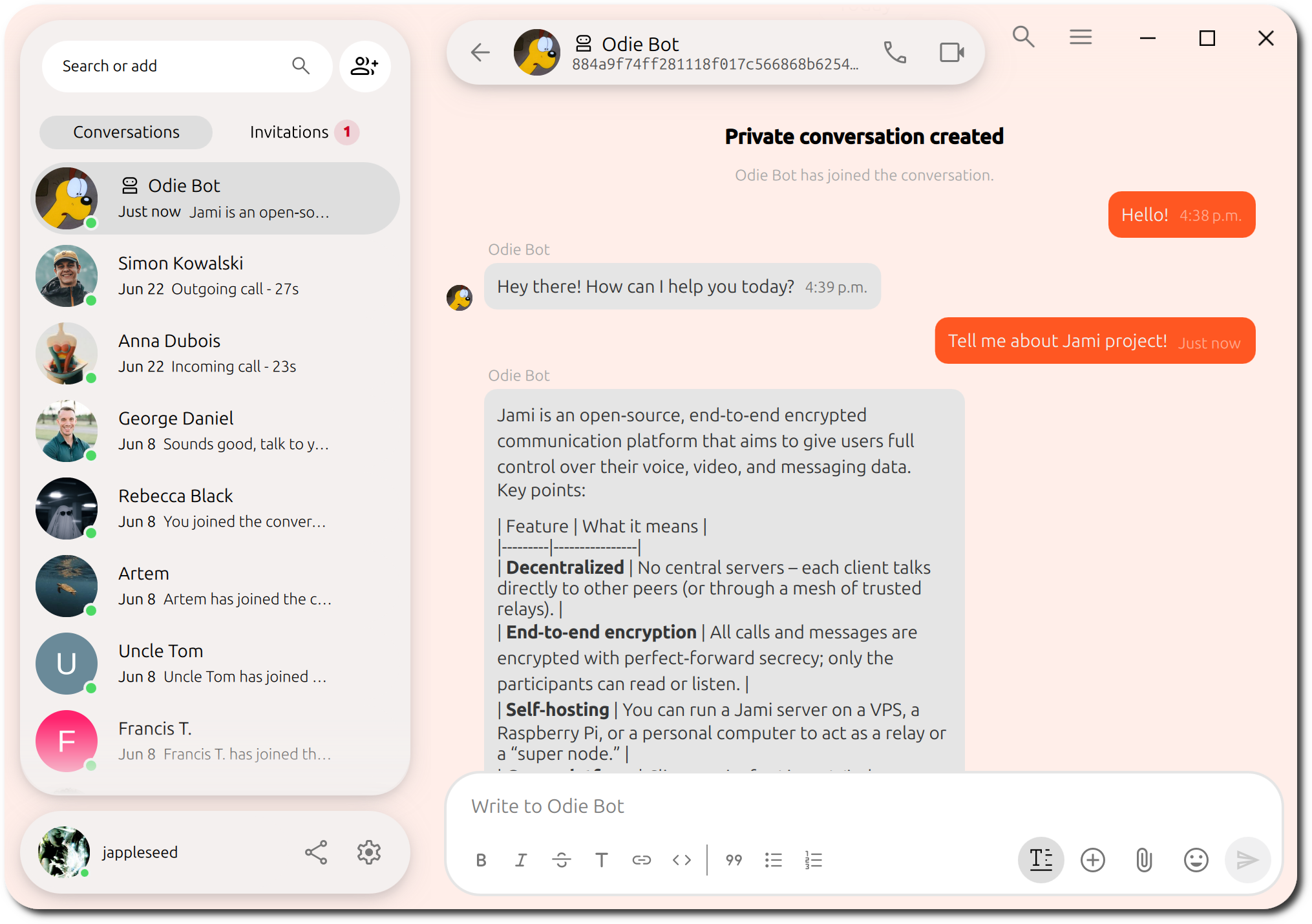
Your Jami bot is now ready to use.