Picture-in-Picture (PiP)
Picture-in-Picture (PiP) lets you continue viewing a video call while using other applications. Whether you’re chatting with friends or presenting during a meeting, PiP keeps the active video visible in a small floating window.
See also
More information on the shared services feature can be found in this blog post.
How do I use PiP?
To use PiP, you must be in an active call. Start a call with a contact or join a conference.
Once you’re in the call, there are two ways to open the PiP window:
Minimize the Jami window.
Manually open the PiP window (see highlighted button in the screenshot below).
Note
If your Jami window is too small, the PiP button (along with several other controls) will be hidden behind the Show more (⋮) button.
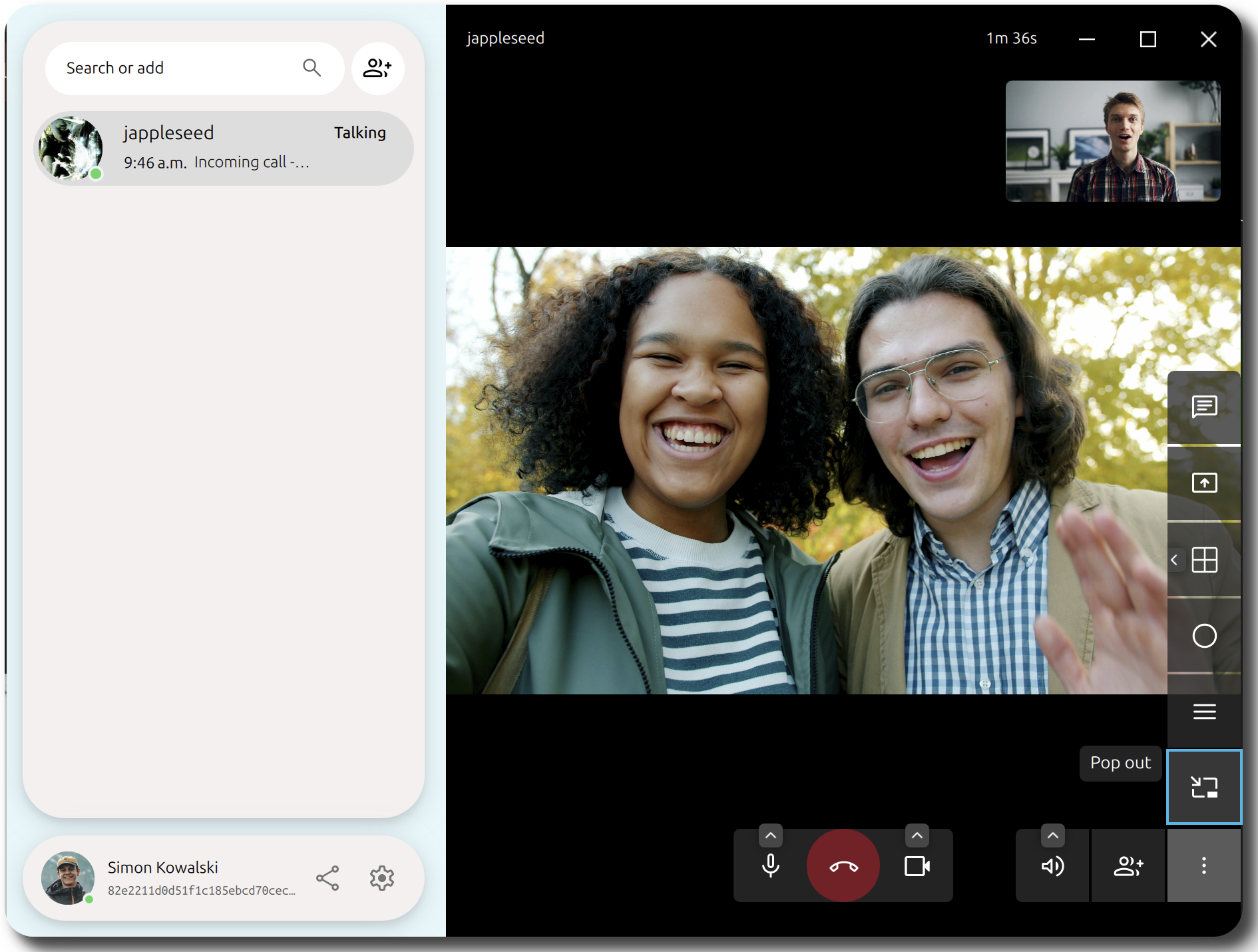
What you’ll see
After you open the PiP window, a small floating window appears showing the other participant’s video.
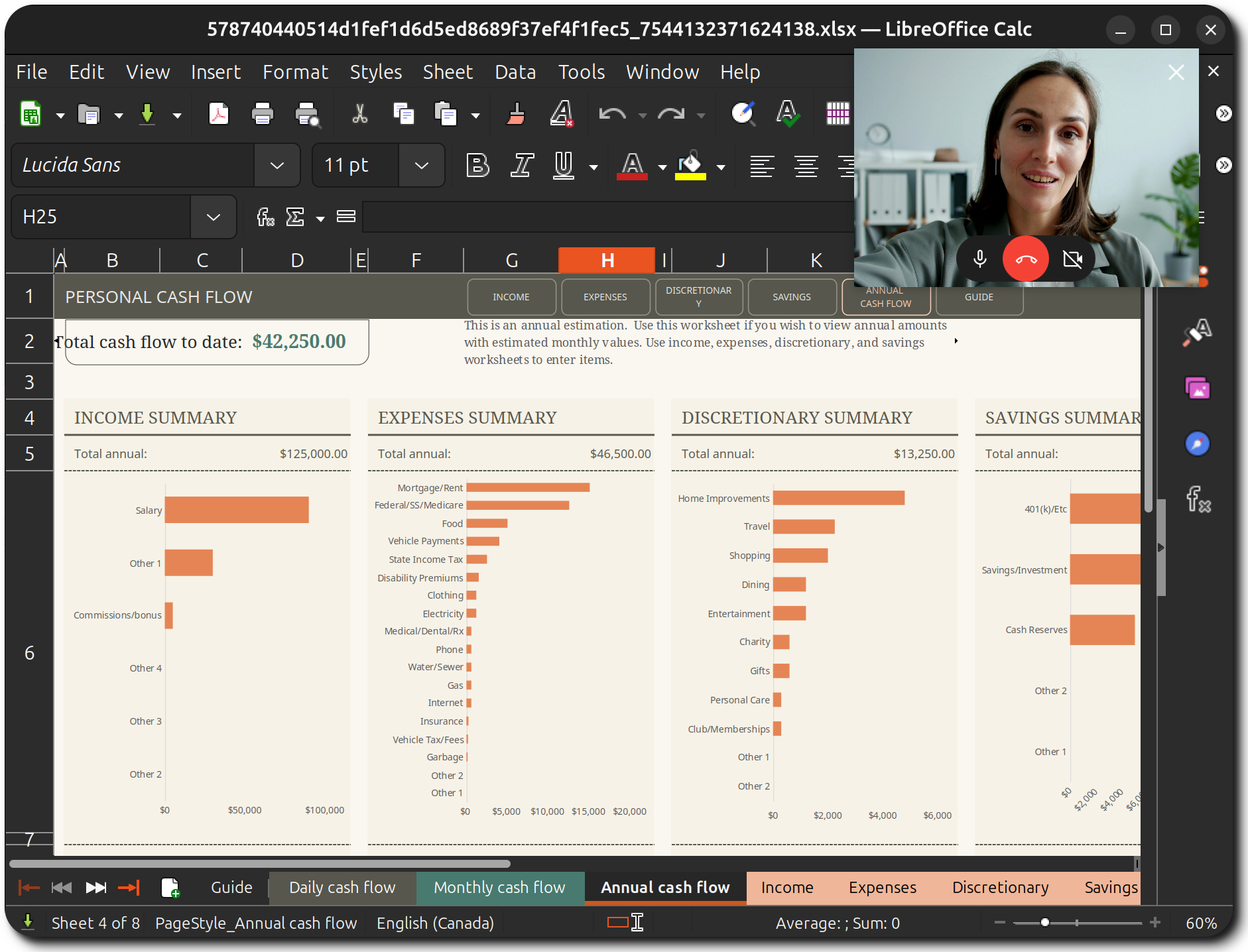
PiP in conferences
PiP provides two additional features during conference calls.
Tip
What does Jami consider a conference?
A conference is any call with three or more participants.
Active speaker
During a conference, PiP automatically displays the participant who is currently speaking.
Raise hand
If you’d like to ask a question without interrupting the conversation, simply raise your hand and wait for your turn to speak.

To raise your hand in a conference while using PiP, simply press the hand icon as shown above to indicate that you’d like to speak. The button is highlighted in blue to indicate that your hand is raised.
Closing PiP
From the PiP window
Note
Closing the PiP window does not end the call.
You can close the PiP window in two ways, depending on what you want to do.
Return to Jami
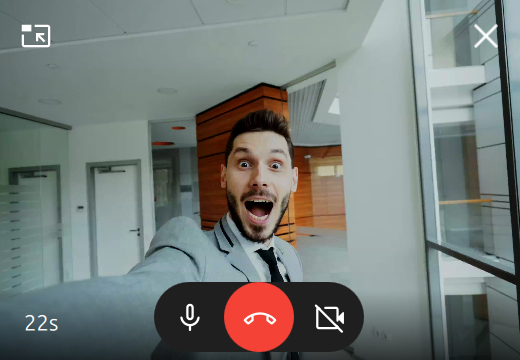
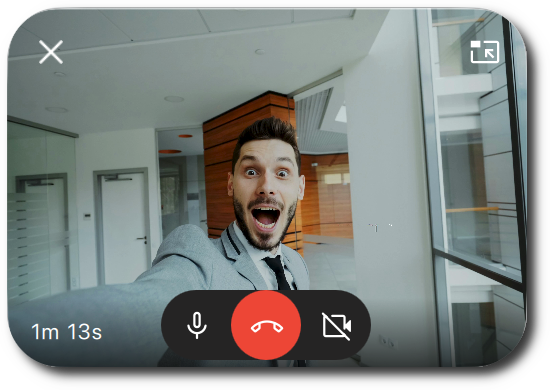
Click the Pop in button in the top-left corner (top-right corner on macOS). This reopens Jami and returns you to the active call.
Closing the PiP window
Click the Close button in the top-right corner (top-left corner on macOS). This closes the PiP window without reopening Jami.
From a conversation
If Jami is already open, click the Return to Call button next to the contact or group photo to return to the active call.

Mobile
Prerequisites and settings
If the video disappears completely instead of shrinking, you need to enable system-level permissions:
Android
Go to Settings > Apps > Jami.
Scroll down to the Advanced section and tap Picture-in-picture.
Toggle on Allow picture-in-picture.
Note
You can double-tap the window to resize it, or drag it to the edge of the screen to stash it.
iOS (iPhone/iPad)
Ensure your device is running iOS 15.0 or later.
Go to the main iOS Settings app > General > Picture-in-Picture.
Make sure Start PiP Automatically is toggled on.
References
Background images for the PiP windows by Vitaly Gariev on Unsplash.