Configurer un compte SIP
Note
Configuring a SIP (Session Initiation Protocol) account in Jami is optional.
SIP providers and input data
Jami can serve as a client (softphone) for commercial VoIP (Voice over Internet Protocol) services via a SIP interface.
VoIP is the Internet technology for the real-time digital exchange of voice and video between calling or conferencing parties.
The SIP protocol is an open standard for the establishment of audio and video calls over the Internet. It can be roughly considered as the digital equivalent of dial-up on old, analog phone lines (POTS—Plain Old Telephone Service).
In other words, while VoIP is a generic name for a technology (Jami is a VoIP peer-to-peer and conferencing software), SIP indicates the solution to reach a landline or mobile telephone with the help of a commercial service. On the other hand, communication providers usually advertise their services as VoIP, not as SIP, which strictly speaking would be the correct indication.
Prerequisites
To use VoIP/SIP services, the following are necessary:
An account from a commercial SIP provider.
A SIP-compatible device or app (softphone, such as Jami).
Features
Note
Start audio call and Start video call terminology is used in the Jami user interface. Start call is also known as Make call and Place call.
SIP providers offer several communication solutions together with POTS features, such as:
Making calls on the public switched telephone network (PSTN), for example, landline and mobile numbers.
Receiving calls on the PSTN network using a traditional (landline) phone number.
Voicemail and call recording.
The basic service of a commercial SIP provider is to build a path over the Internet to reach a phone identified by its area code and number. The called party is either a phone connected to a landline, a mobile phone, or another VoIP phone connected to its SIP operator. A SIP subscription usually includes a number for incoming calls known as a DID (Direct Inward Dial), a virtual number that works in a way similar to traditional phone numbers.
Configuring an account on Jami
Prerequisites from the SIP provider
Under a VoIP contract, the SIP provider gives the customer the following information:
Identifier/username—This is usually the customer’s phone number or a company-internal customer identifier.
Server—The IP address or URL address of the provider’s SIP handling server.
Password—The password (passphrase) to access the SIP server.
This information is necessary to configure the Jami SIP interface.
Configuring a new SIP account
After opening Jami for the first time, navigate through the following:
Add another account → Advanced features → Configure SIP account
A screen similar to the following should be presented:
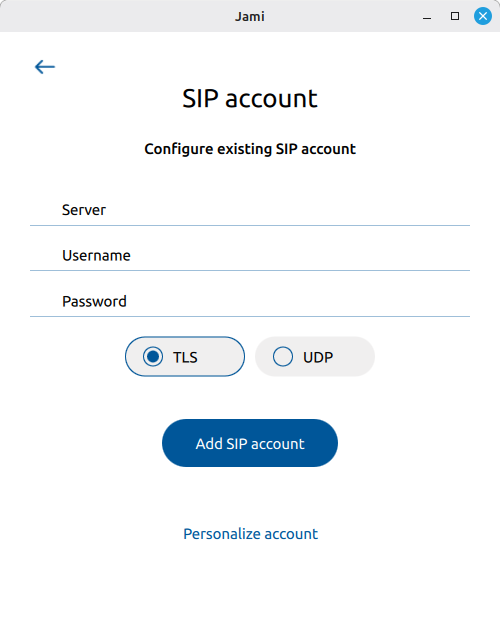
Enter the credentials as indicated by the SIP provider.
Nom d’utilisateur
Some providers use different formats for the SIP access credentials.
For example, the username and server may be indicated together in the format sip:1234567@voip.provider.net
1234567 is the username, and voip.provider.net is the server address.
In Jami, they must be entered separately in their respective fields.
The server address may be presented by the SIP provider as sip:voip.provider.net;transport=udp.
In this case the transport format UDP is explicitly indicated.
Serveur
Enter the server name in the corresponding field without the sip, sips, http or https protocol indication.
Mot de passe
Protect the password as sensitive information in the same way as other passwords. An unauthorized third party who knows the phone number, the server URL address (this information is not strictly secret), and the password may access the server and make calls that will be charged to the legal account owner.
TLS vs. UDP
In most cases SIP communication takes place over UDP and not over encrypted TLS.
Few SIP providers so far support TLS encryption, and usually only as an option.
Unless there is a clear indication about TLS by the SIP provider, at this point select the UDP option.
If necessary, the UDP setting can be later changed to TLS (see TLS encryption). TLS will require the entry of additional parameters indicated by the SIP provider.
Starting calls
With the parameters configured in prerequisites from the SIP provider, it is possible to start a call.
Enter the phone number to be called in the Search
 field (
Ctrl+F).A window opens with the destination phone number to call indicated in the top bar. Click the Start audio call
 button (
Ctrl+Shift+C).The call is terminated by clicking the End call
 button (
Ctrl+D). If the End call button is not shown in the Jami window, hover the mouse pointer over the window.
Manage account tab
The account management settings in Jami can be opened by clicking the Settings  button (
Ctrl+Alt+I).
Activer le compte
For the account to function, the switch must be ON.
If set to OFF, the SIP account is disabled, and neither outbound calls can be started nor incoming calls be received.
Identité
In this subsection the main account configuration parameters from Prerequisites from the SIP provider can be edited.
A field to enter a proxy server address is also provided. In most cases this does not concern home use. If a proxy server is installed, for example, in a work environment, the related setup information can be obtained from the system administrator.
Supprimer le compte
This removes the SIP account from Jami. It will also delete all existing call and message history associated with the account.
Customize profile tab
A display name and profile picture can be configured here. Neither are transmitted over the SIP server, nor do they influence SIP operation. They are both present purely for local representation.
Advanced settings tab
The settings in this section are already configured with generally valid default values. Any changes should only be carried out on explicit instruction by the SIP provider. The system administrator may be required to set up some of the parameters of the Jami softphone if the internal communication network is under the control of a switchboard.
Sécurité
SDES key exchange
Enable SDES key exchange [NO|YES] - Default YES.
The SIP provider should advise whether SDES key exchange is used or not. If the SIP provider does not use SDES, the setting is irrelevant.
TLS encryption
Encrypt negotiation (TLS) [NO|YES] - Default NO.
In most cases SIP communication takes place over UDP and not over encrypted TLS.
TLS encryption may be enabled during the initial setup, configuring a new SIP account, but also activated in this menu. It is necessary to fill the other fields with the relevant data if TLS encryption is required.
TLS encryption is rarely used, and where it is, it is optional. The SIP provider must give the user the certificate and the information to set up this section.
Connectivité
Generally, these parameters are left with the following default values. They should only be changed by the system administrator or on the advice of the SIP provider.
Auto Registration After Expired [
NO|YES] - Default YES.Registration expiration time (seconds) - Default 3,600.
Network interface - Default 5060.
Use UPnP [
NO|YES] - Default YES.Use TURN [
NO|YES] - Default NO.Use STUN [
NO|YES] - Default NO.
Adresse publique
Allow IP Auto Rewrite [NO|YES] - Default YES.
If set to NO, new fields are shown.
Enter manually the IP address and the port.
Media (codecs)
Enabled video [NO|YES] - Default YES.
During a call setup, the Jami client negotiates with the peer the audio and video codecs that provide for the best quality for a given connection speed and latency. Video transmission can be disabled here so that the option does not appear in the menu to initiate a call.
In case of poor voice quality, it is possible to manually select the codec providing the best results. The choice must be the same for both communication peers.
Négociation de session SDP (en cas d’échec ICE)
Configuration parameters are reserved for the system administrator.
Media (local audio and video) tab
Set up parameters for the local audio and video interface.
Other features and configurations
Direct calls inside a LAN
Jami can make « direct » calls inside local area network (LAN) and wide area network (WAN) intranets from a Jami client to SIP-enabled devices.
For example, if a device at the 192.168.1.11 IP address has a Jami client installed and a SIP loudspeaker is located at the 192.168.1.68 IP address:
In the Search
field (Ctrl+F), type the SIP URI, such astest@192.168.0.10.Click the contact in the Search results.
Click the Start audio call
button (Ctrl+Shift+C).
Private branch exchanges (PBX)
Jami is compatible with private branch exchanges (PBX), such as Asterisk, using a SIP account.
If an Asterisk server does not encrypt communications:
RTP must be used when configuring the SIP account in Jami.
SDES key exchange and TLS must be disabled in the Jami SIP account’s advanced settings.
Set the order of the preferred audio codecs to G.711a 8000 Hz, G.711u 8000 Hz, G.722 16000 Hz, and G.726 8000 Hz.
SIP channels
Note
SIP channels are also known as sub-accounts and SIP extensions.
If required, SIP channels allow the registration of more than one device to make or receive calls simultaneously. It can also be used as an internal extension for the office and the home.
To ensure that all devices using the same SIP account ring when there are incoming calls, ensure that each device uses a different SIP channel.
For each device using a Jami client with the same SIP account, a new channel must be created; otherwise, the different devices will « compete » to « answer » incoming calls. The number of SIP channels required is the same as the number of configured desktop and mobile devices that use the same SIP account.
Ring groups
Ring groups are used to ring specific groups of users in a preconfigured pattern. Calls routed to a ring group will follow the configured ring pattern for that group.